Pause, Inspect, Edit: Debug Mode for LLM Requests in vLLora

LLMs behave like black boxes. You send them a request, hope the prompt is right, hope your agent didn't mutate it, hope the framework packaged it correctly — and then hope the response makes sense. In simple one-shot queries this usually works fine. But when you're building agents, tools, multi-step workflows, or RAG pipelines, it becomes very hard to see what the model is actually receiving. A single unexpected message, parameter, or system prompt change can shift the entire run.
Today we're introducing Debug Mode for LLM requests in vLLora that makes this visible — and editable.
Here’s what debugging looks like in practice:
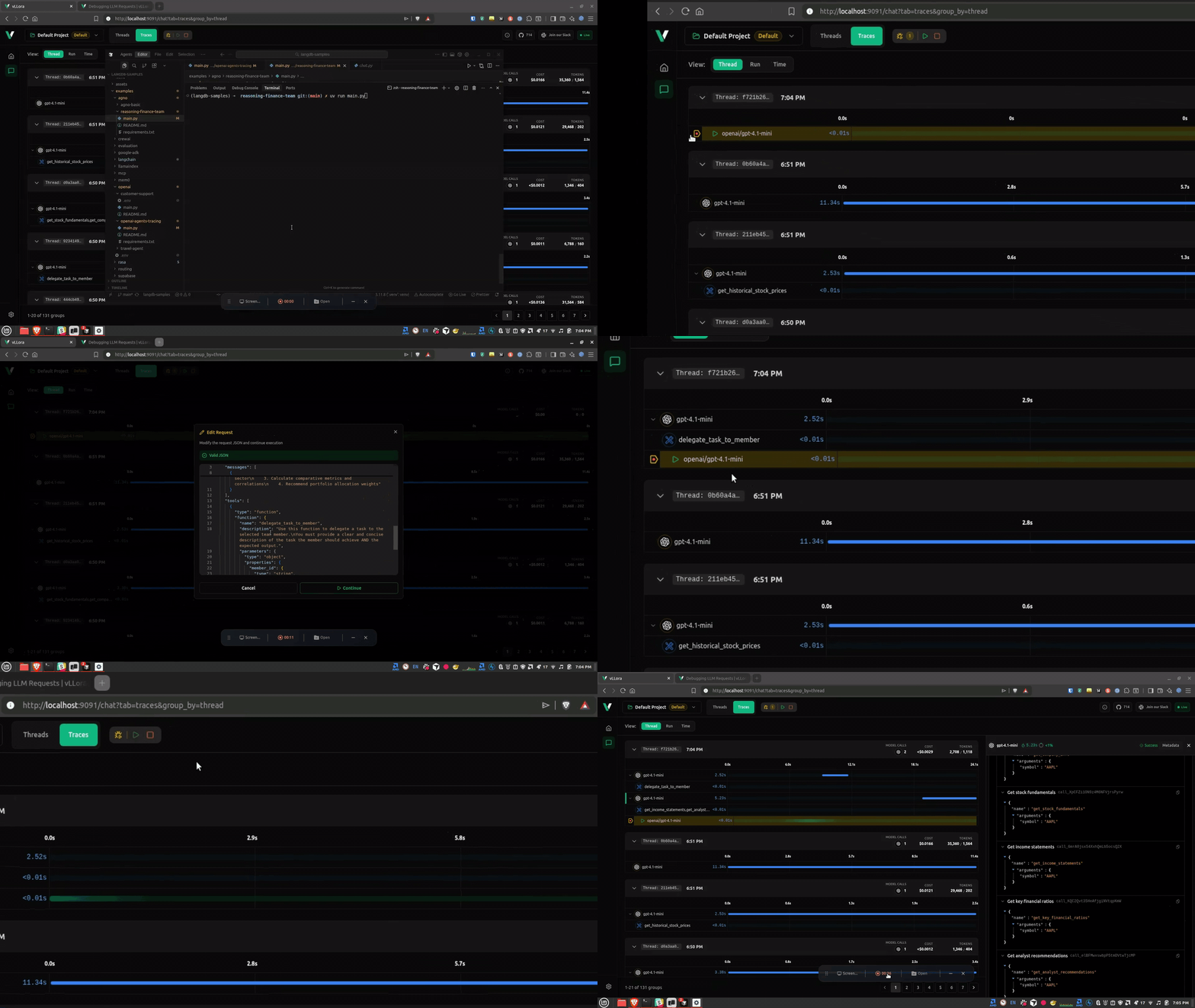
vLLora now supports Debug Mode for LLM requests. When Debug Mode is enabled, every request pauses before it reaches the model. Debug Mode works by inserting breakpoints on every outgoing LLM request, allowing you to inspect, edit, or continue execution.
You can:
- Inspect the exact request
- Edit anything
- Continue execution normally
This brings a familiar software-engineering workflow ("pause -> inspect -> edit -> continue") to LLM development.
Why We Built This
If you've built anything beyond a simple chat interface, you've likely hit one of these:
- Silent tool-call failures (wrong name / bad params / malformed JSON)
- Overloaded or corrupted context / RAG input leading to hallucination or truncation
- Error accumulation and state drift in long or multi-step workflows
- Lack of visibility: standard logs rarely show the actual request sent to the model
It is difficult to fix these issues without proper observability. Debug Mode changes that.
What Happens When a Request Pauses
Here's what it looks like when vLLora intercepts a request right before it's sent:
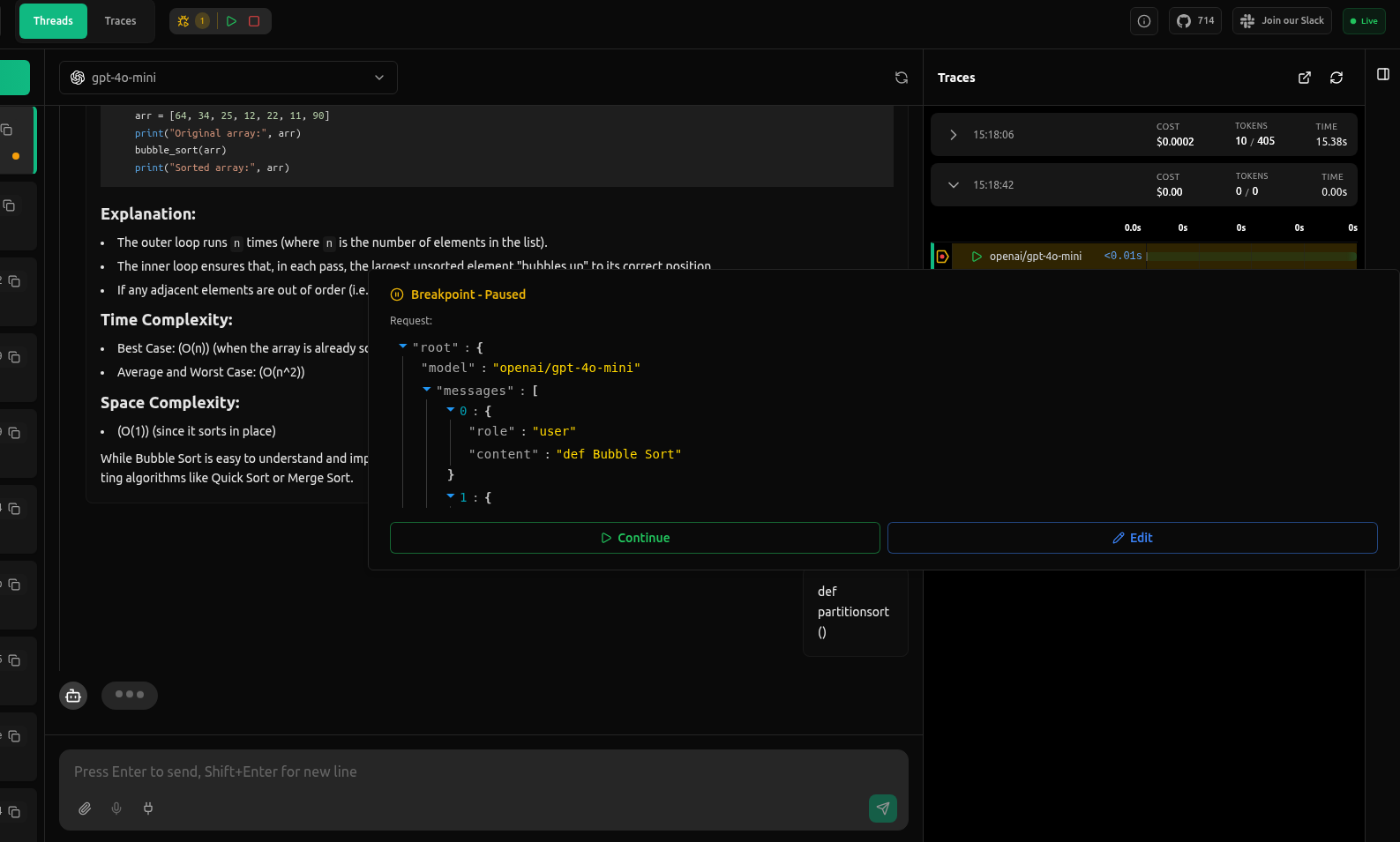
You get a real-time snapshot of:
- The selected model
- Full message array (system, user, assistant)
- Parameters like temperature or max tokens
- Any tool definitions
- Any extra fields and headers your framework injected
This is the full request payload your application is about to send — not what you assume it's sending.
Edit Anything
Click Edit and the payload becomes modifiable:
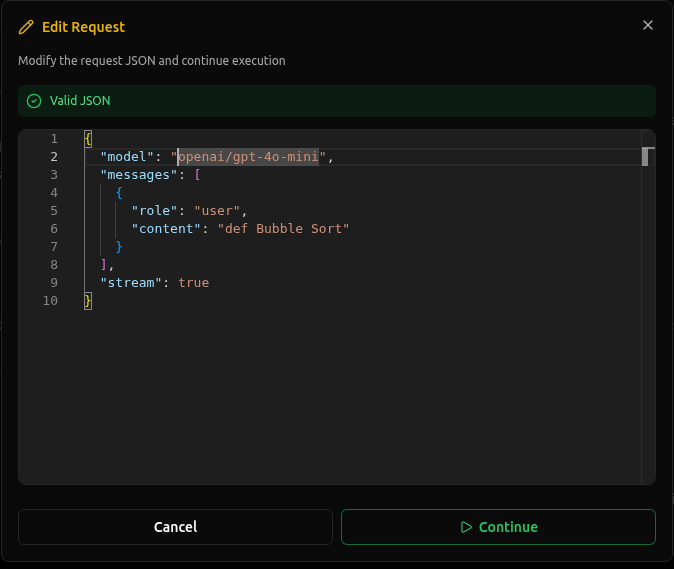
You can adjust:
- Message content
- System prompts
- Model name
- Parameters
- Tool definitions
- Metadata
This affects only the current request. Your application code stays untouched.
It's a fast way to validate fixes, test ideas, and confirm what the agent should have sent.
Continue the Workflow
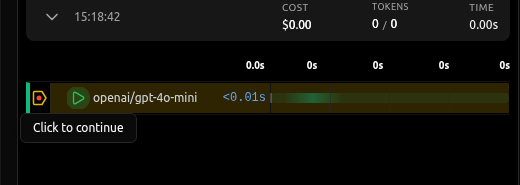
When you click Continue, vLLora:
- Sends your edited request to the model
- Receives the real response
- Passes it back to your application
- Resumes the workflow as if nothing unusual happened
After you click Continue, the workflow proceeds using the response from your edited request. The agent treats it the same way it would treat any normal response from the model.
Why This Matters for Agents
Agents are long-running chains of decisions. Each step can depend on the previous one, and each step can affect the next. Once you're 15 steps deep, you might not know whether:
- The prompt changed
- A system message was overwritten
- A parameter was set differently than expected
- The context blew up
- A tool schema got mutated
With Debug Mode:
- You catch drift early
- You see exactly what the model receives
- You fix issues in seconds
- You avoid rerunning long multi-step workflows
- You test prompt or parameter changes instantly
For deep agents, debugging becomes 10x easier.
Closing Thoughts
Debugging LLM systems has been mostly tedious. Debug Mode gives you a clear view into what’s happening and a way to correct issues as they occur.
If you need to understand or fix what an agent is sending, this is the most direct way to do it.
Read the docs: Debug Mode
Try it locally: Quickstart